

Login
Vendor Login- How to Access Your Account
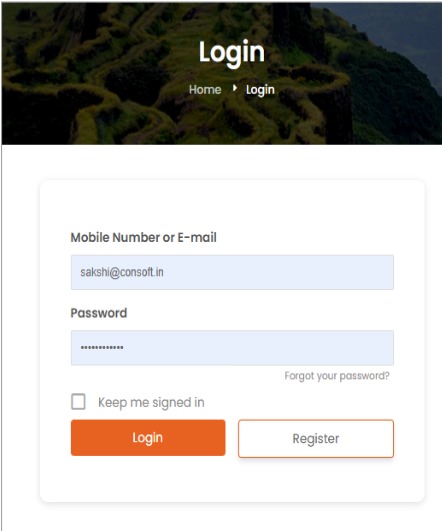
Enter Mobile Number or Email:
Use the number or email you registered with.
Enter Password :
Type your secure password correctly.
Keep Me Signed In :
Select this if you want to stay logged in on your device
Login Button
Click the Login button to securely access your dashboard and continue.
Customer Login
Enter your registered email address. This must be the same email used during account registration.
Password:
Enter your secure password correctly. Passwords are case-sensitive to ensure account security.
Keep Me Signed In :
Select this option to stay logged into your account on your device, avoiding repeated login each time.
Login Button
Click the Login button to securely access your dashboard and continue.
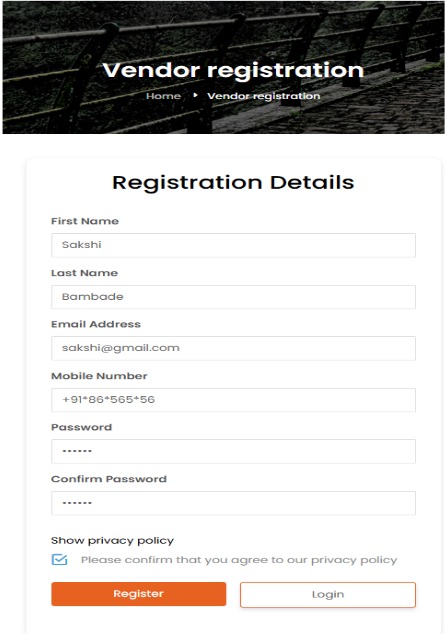
Vendor Registration – Create Your Account
Basic Details:
Enter your First Name, Last Name, and a valid Email Address.
Contact Info:
Provide your Mobile Number for account verification and communication.
Security:
Create a Strong Password and confirm it to secure your account.
Privacy Policy:
Check the box to agree to the Privacy Policy .
Complete:
Click on the “Register” button to submit your details.
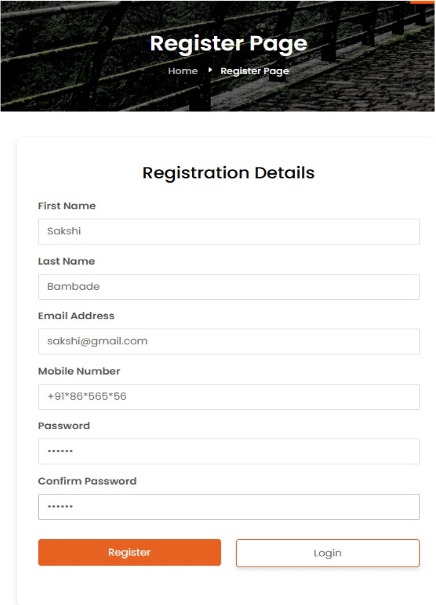
First Name
Enter your First Name as per your official records.
Last Name:
Enter your Surname.
Email Address
Provide a valid Email Address for login and important updates.
Mobile Number
Enter your active Contact Number with country code for verification .
Password
Create a Strong Password to keep your account secure.
Confirm Password
Re-enter the Same Password to make sure it matches.
Register Button
Click Register to create your customer account.
Login Button (For Existing Users)
If you already have an account, click Login instead of registering again.
Customer Account Registration
Register Under Accommodations
Add Listing
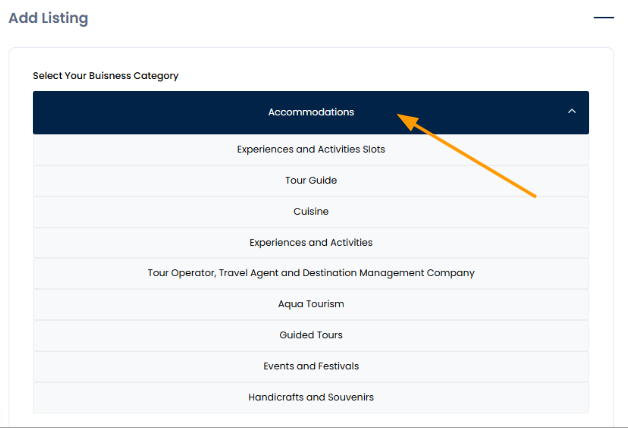
When you go to the “Add Listing” section, you can begin adding your business to Mahhatithi. This is the first step to creating an online presence for your business.
The first thing you need to do is select your Business Category as per the nature of your business.
Mahhatithi provides a clear List Of Business Types to choose from, like aqua tourism, travel services, cuisine, accommodation, and more. Picking the right category helps customers find the business easily.
For Accommodation, you need to select the “Accommodation” option from the dropdown list.
Select the subcategory for your business.
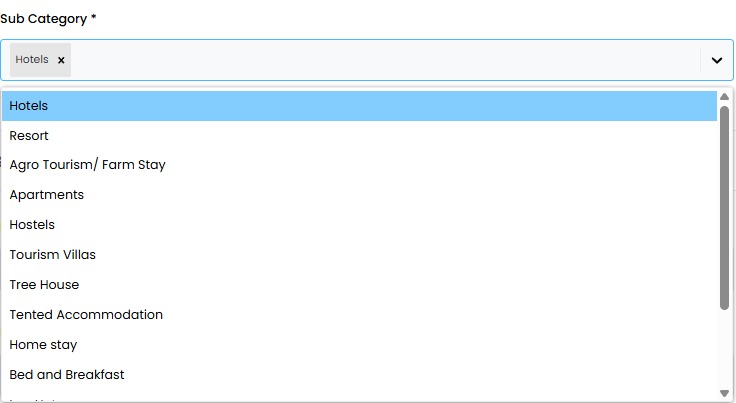
After selecting the main Business Category, the next step is to pick the most suitable Subcategory from the dropdown menu.
The subcategory helps to further Define Your Business, making it easier for customers to find exactly what they are looking for.
For example, if your main category is Accommodation, the subcategory could be Hotels or something else, depending on your business type.
Selecting the correct subcategory ensures your business is listed accurately and improves its visibility on Mahhatithi.
Basic Informations
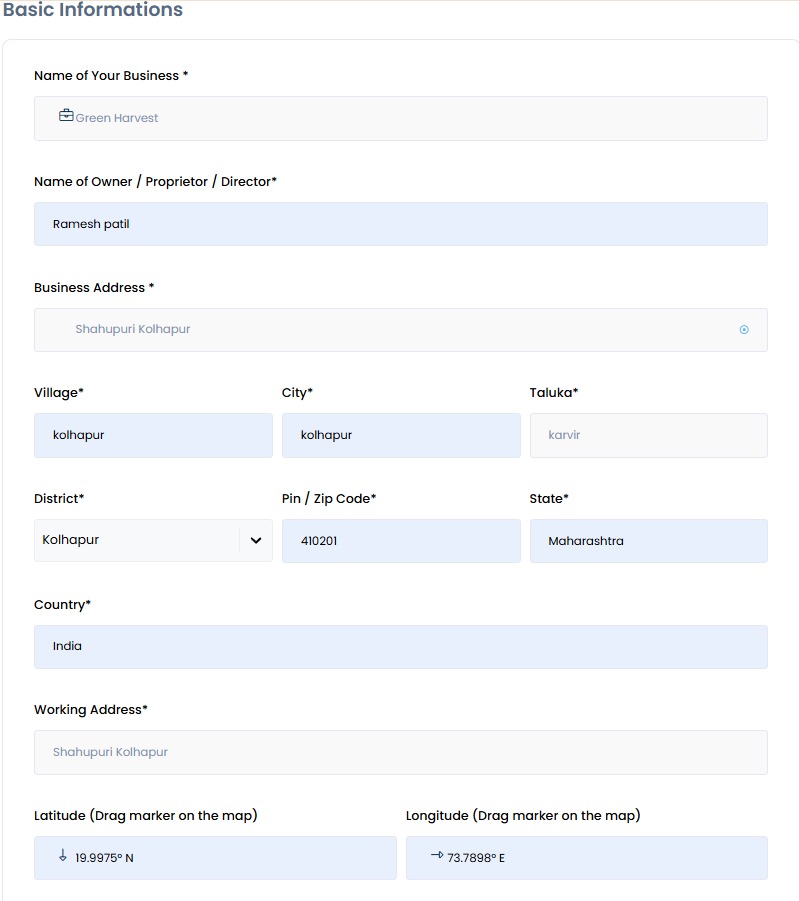
After selecting the main Business Category and the appropriate Subcategory, you need to fill in the Basic Information About your Business. This step is important because it ensures the business is correctly listed and easy for customers to find.
In this section, you provide details such as the Business Name, Owner or Director Name, and the full Business Address, including village, city, taluka, district, state, country, and pin/zip code. If the working address is different from the main address, that can also be added. You also need to enter contact details like phone number and email, and may need to provide Aadhaar or ID information for verification.
Images and Media
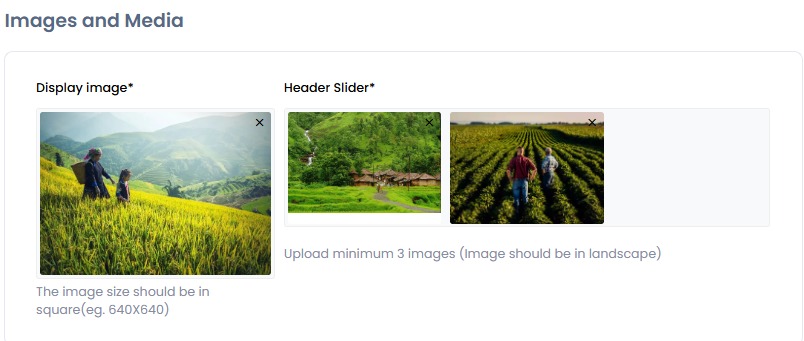
Once you have filled in all the basic business details, the next step is to Upload Images in the Images and Media section. This section allows the business to Showcase Its Brand Visually, which makes the listing more attractive to potential customers.
You start by uploading a Display Image in a square format, which will be used as the main image for the business profile. Then, you can upload at least Three Landscape Images for the Header Slider, which appear prominently on the listing page. These images can include pictures of the shop, office, products, services, or any other visual representation of the business.
Uploading high-quality images is important because it improves the overall look of the listing, helps build trust with customers, and Makes The Business Stand Out From Others on the platform.
Details
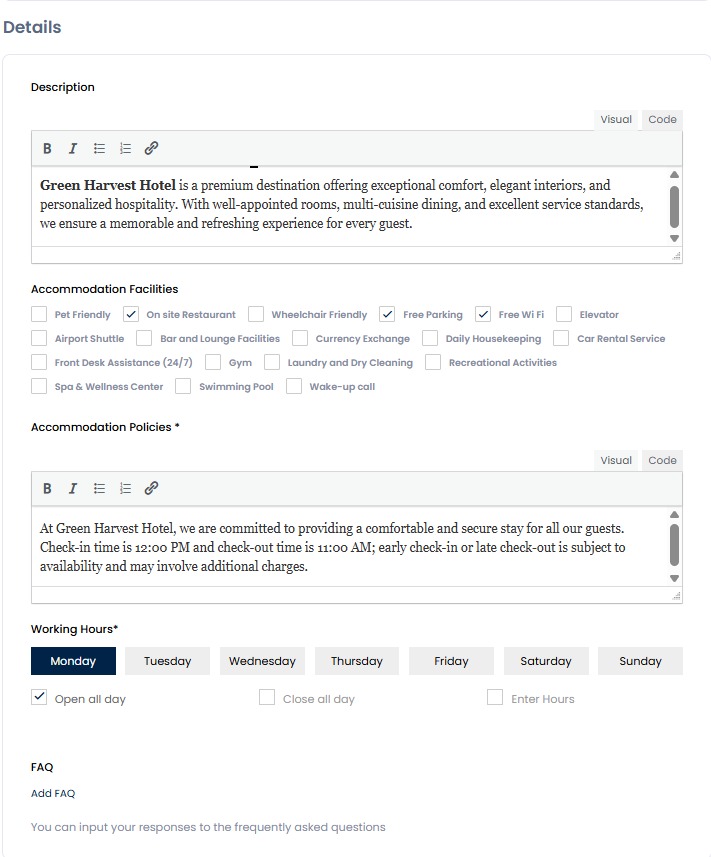
After uploading images, you move to the Details section, where you provide more in-depth Information About your Business. This step helps customers understand what the business offers and what to expect.
In this section, you enter the Guest Capacity to show how many people the business can accommodate. Then you can also write a Business Description, giving an overview of the services, ambiance, or Unique Features of the business.
You also can list Available Facilities, such as free Wi-Fi, parking, air conditioning, or any other amenities that make the business convenient and attractive to customers.
Additionally, this section allows you to include Policies, such as rules for reservations, cancellations, or refunds, and FAQs to answer common customer questions.
Add Rooms
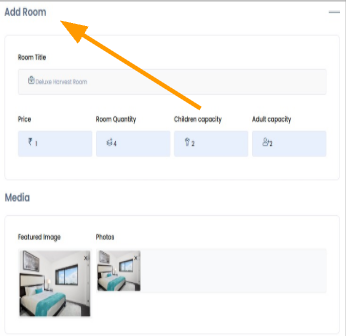
First, you must enter the Room Title (for example, Deluxe Harvest Room). Next, you need to add the Price of the room per night. Then, you should specify the Room Quantity, which indicates how many rooms of this type are available.
After that, you must define the Adult Capacity and Children Capacity, so guests clearly understand how many people can stay in the room comfortably.
In the Media section, you should upload a Featured Image, which will be the main display image of the room. You can also add multiple Room Photos to showcase the interior, amenities, and overall appearance. Adding clear and attractive images helps increase bookings and build customer trust.
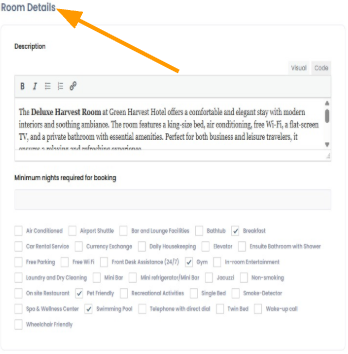
First, you must enter a proper Room Description explaining the room features, comfort level, and amenities. A clear and attractive description helps guests make booking decisions easily.
Next, you can set the Minimum Nights Required for Booking, which defines the least number of nights a guest must stay to book the room.
Below that, you can select available Room Amenities such as Air Conditioning, Free Wi-Fi, Breakfast, Swimming Pool, Elevator, Gym, Parking, Non-Smoking, Pet Friendly, and more. Selecting the correct amenities ensures guests know exactly what facilities are included.
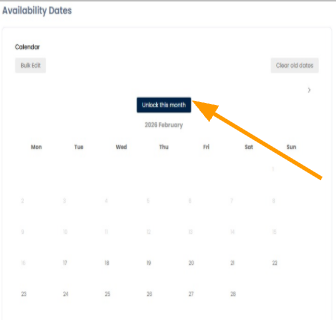
To manage room availability, start by opening the calendar view in the Rooms section and clicking on the Unlock This Month button.
This unlocks all the dates for that month, allowing you to select specific days to mark rooms as available and set prices. Until the month is unlocked, the dates remain locked and cannot be edited.
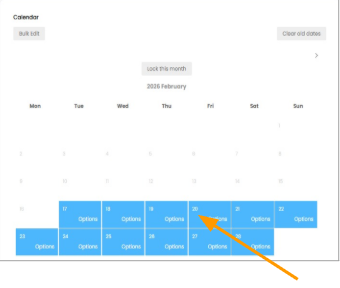
After clicking the Unlock This Month button, the calendar opens, showing all dates from the current day to the end of the month highlighted in blue.
These highlighted dates indicate that they are now editable, allowing you to select specific days to mark rooms as available and set prices for each date.
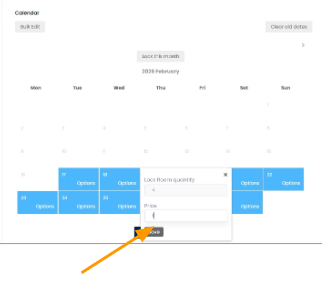
To manage room availability, start by clicking the Unlock This Month button, which opens the calendar from the current date to the end of the month, highlighted in blue.
You can then double-click any specific date to set the room price according to your preference, and finally, click “Save” to apply the changes.
This ensures that room availability and pricing are updated accurately and reflected on the platform for customers.
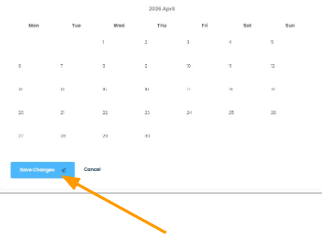
Once you have entered the room prices for the selected dates, click on “Save” to confirm and apply all changes. This ensures that the room availability and pricing are properly updated on the platform and visible to customers.
Business Documents and Information
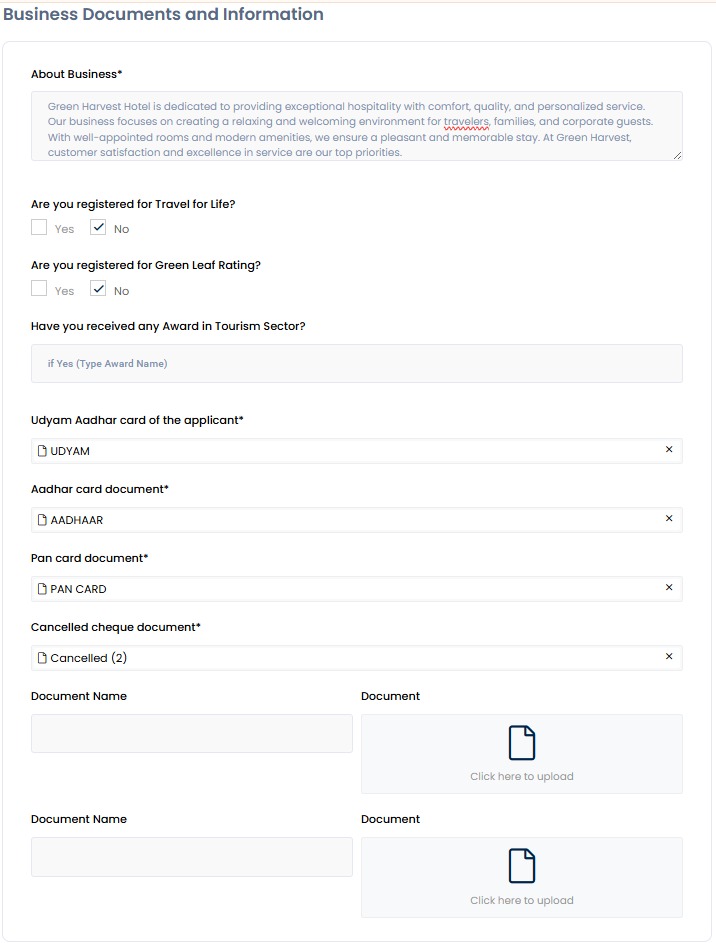
After completing the business details, you proceed to the Documents Section. This step is essential to verify the Authenticity Of The Business and ensure that all legal and financial requirements are met.
In this section, you must upload important documents such as UDYAM Aadhaar, Aadhaar Card, PAN Card, and a Cancelled Cheque. Depending on the type of business, you may also need to upload additional supporting documents to provide proof of ownership, registration, or compliance with local regulations.
Uploading these documents helps Mahhatithi verify the business quickly and accurately, ensuring that only genuine and legitimate businesses are listed on the platform. This step also builds trust with customers, who can be confident that the businesses on Mahhatithi are verified and credible.
Terms and Conditions
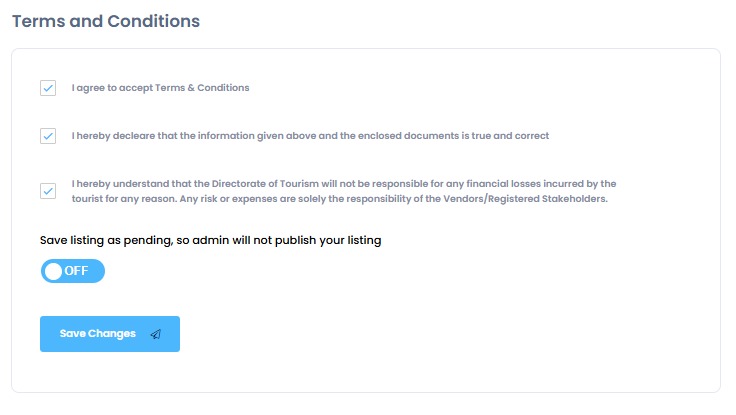
After uploading all the required documents, then you reach the final step of the registration process. Here, you carefully review all the information you have entered, ensuring that everything is accurate and complete.
You must also read and accept the Terms and Conditions, confirming that you understood the rules and policies of Mahhatithi. By submitting the listing, you declare that all the information provided is true and correct.
Once submitted, the application is saved as pending. The listing will be reviewed and verified by the Mahhatithi admin to ensure it meets the platform’s standards. After approval, the Business Listing Is Published On The Platform, making it visible to customers and fully active.
Register Under Tour Guide
Add Listing
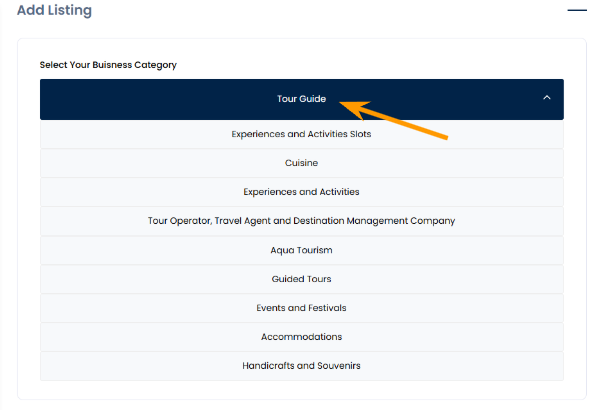
When you go to the “Add Listing” section, you can begin adding your business to Mahhatithi. This is the first step to creating an online presence for your business.
The first thing you need to do is select your Business Category as per the nature of your business.
Mahhatithi provides a clear List Of Business Types to choose from, like aqua tourism, travel services, cuisine, accommodation, and more. Picking the right category helps customers find the business easily.
For Accommodation, you need to select the “Tour Guide” option from the dropdown list.
Basic Informations
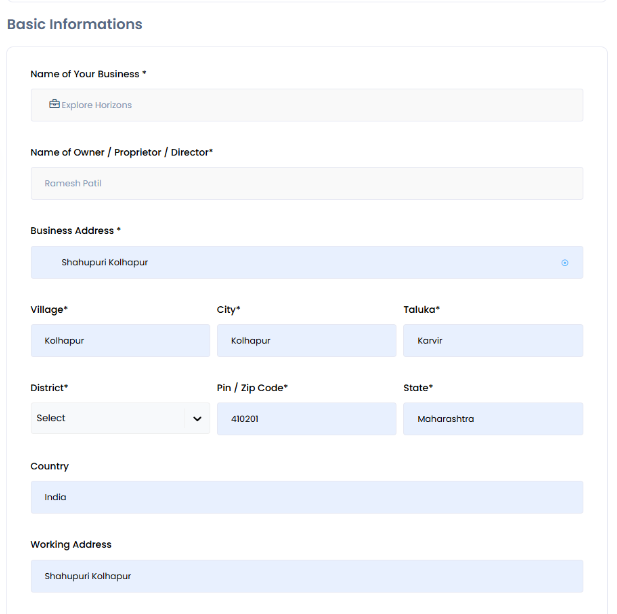
After selecting the main Business Category and the appropriate Subcategory, you need to fill in the Basic Information About your Business. This step is important because it ensures the business is correctly listed and easy for customers to find.
In this section, you provide details such as the Business Name, Owner or Director Name, and the full Business Address, including village, city, taluka, district, state, country, and pin/zip code. If the working address is different from the main address, that can also be added. You also need to enter contact details like phone number and email, and may need to provide Aadhaar or ID information for verification.
Images and Media
Once you have filled in all the basic business details, the next step is to Upload Images in the Images and Media section. This section allows the business to Showcase Its Brand Visually, which makes the listing more attractive to potential customers.
You start by uploading a Display Image in a square format, which will be used as the main image for the business profile. Then, you can upload at least Three Landscape Images for the Header Slider, which appear prominently on the listing page. These images can include pictures of the shop, office, products, services, or any other visual representation of the business.
Uploading high-quality images is important because it improves the overall look of the listing, helps build trust with customers, and Makes The Business Stand Out From Others on the platform.
Details
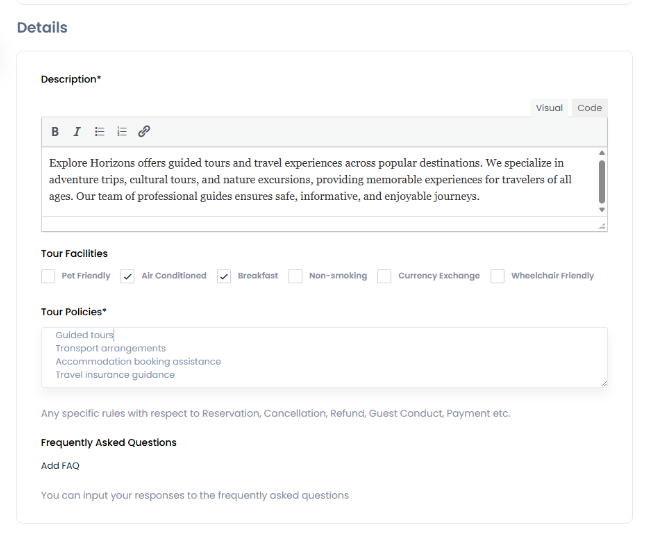
After uploading images, you move to the Details section, where you provide more in-depth Information About your Business. This step helps customers understand what the business offers and what to expect.
You also can list Available Facilities, such as free Wi-Fi, parking, air conditioning, or any other amenities that make the business convenient and attractive to customers.
Additionally, this section allows you to include Policies, such as rules for reservations, cancellations, or refunds, and FAQs to answer common customer questions.
Tours & Pricing
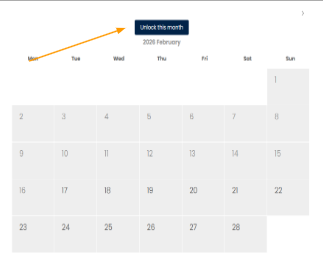
To manage room availability, open the Rooms calendar and click Unlock This Month to enable editing from the current date to the end of the month. Then double-click any date to set the room price and click Save to apply changes. You can select specific days to customize availability as needed. Locked months cannot be edited, ensuring no accidental changes are made. This process keeps your room listings accurate and up to date for customers
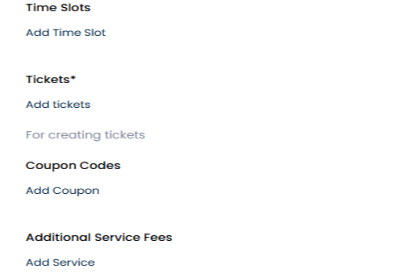
You can book tickets here by adding time slots, selecting tickets, applying coupons, and choosing any additional services if needed.
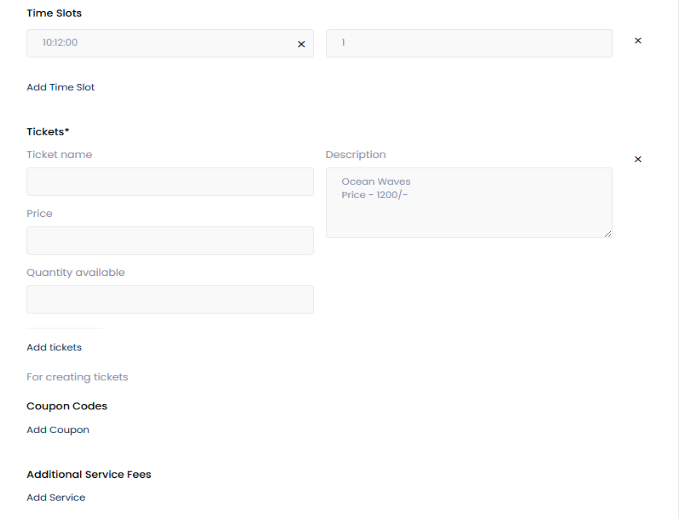
Refer to this section to add event details such as time slots, ticket name, description, price, and available quantity. Enter the required information in each field, then use Add tickets to include more ticket types if needed. You can also add coupon codes and additional service fees to customize the booking options for your event.
Business Documents and Information
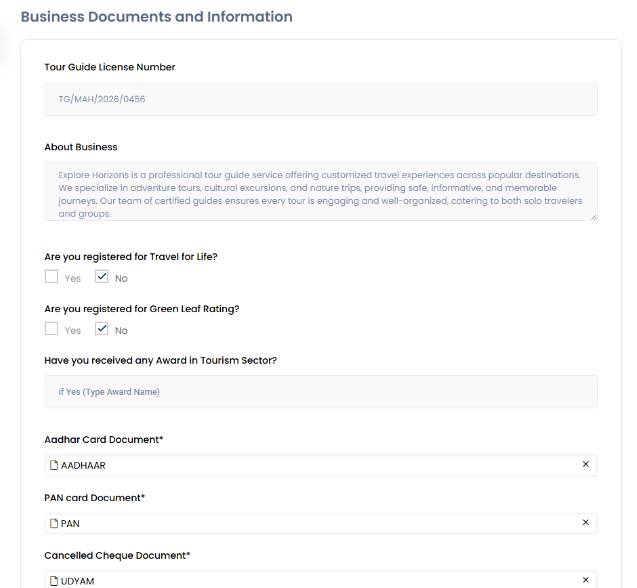
After completing the business details, you proceed to the Documents Section. This step is essential to verify the Authenticity Of The Business and ensure that all legal and financial requirements are met.
In this section, you must upload important documents such as UDYAM Aadhaar, Aadhaar Card, PAN Card, and a Cancelled Cheque. Depending on the type of business, you may also need to upload additional supporting documents to provide proof of ownership, registration, or compliance with local regulations.
Uploading these documents helps Mahhatithi verify the business quickly and accurately, ensuring that only genuine and legitimate businesses are listed on the platform. This step also builds trust with customers, who can be confident that the businesses on Mahhatithi are verified and credible.
Terms and Conditions
After uploading all the required documents, then you reach the final step of the registration process. Here, you carefully review all the information you have entered, ensuring that everything is accurate and complete.
You must also read and accept the Terms and Conditions, confirming that you understood the rules and policies of Mahhatithi. By submitting the listing, you declare that all the information provided is true and correct.
Once submitted, the application is saved as pending. The listing will be reviewed and verified by the Mahhatithi admin to ensure it meets the platform’s standards. After approval, the Business Listing Is Published On The Platform, making it visible to customers and fully active.
Register Under Experiences & Activities
Add Listing
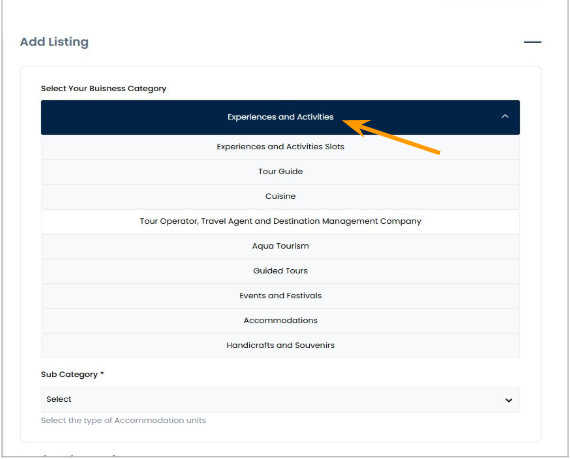
When you go to the “Add Listing” section, you can begin adding your business to Mahhatithi. This is the first step to creating an online presence for your business.
The first thing you need to do is select your Business Category as per the nature of your business.
Mahhatithi provides a clear List Of Business Types to choose from, like aqua tourism, travel services, cuisine, accommodation, and more. Picking the right category helps customers find the business easily.
For the Experiences and Acitivities, you need to select the “Experiences and Activities” option from the dropdown list.
Select the subcategory for your business.
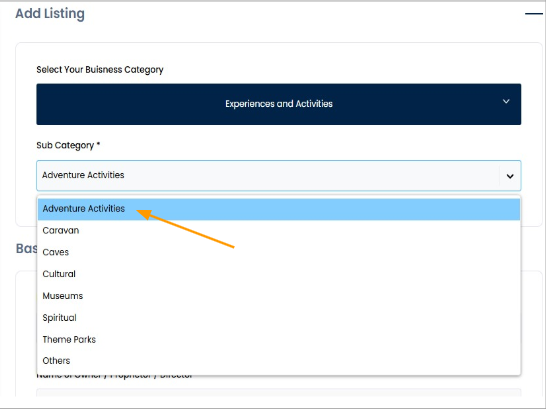
After selecting the main Business Category, the next step is to pick the most suitable Subcategory from the dropdown menu.
The subcategory helps to further Define Your Business, making it easier for customers to find exactly what they are looking for.
For example, if your main category is Experinces and Activites, the subcategory could be caves or something else, depending on your business type.
Selecting the correct subcategory ensures your business is listed accurately and improves its visibility on Mahhatithi.
Basic Informations
After selecting the main Business Category and the appropriate Subcategory, you need to fill in the Basic Information About your Business. This step is important because it ensures the business is correctly listed and easy for customers to find.
In this section, you provide details such as the Business Name, Owner or Director Name, and the full Business Address, including village, city, taluka, district, state, country, and pin/zip code. If the working address is different from the main address, that can also be added. You also need to enter contact details like phone number and email, and may need to provide Aadhaar or ID information for verification.
Images and Media
Once you have filled in all the basic business details, the next step is to Upload Images in the Images and Media section. This section allows the business to Showcase Its Brand Visually, which makes the listing more attractive to potential customers.
You start by uploading a Display Image in a square format, which will be used as the main image for the business profile. Then, you can upload at least Three Landscape Images for the Header Slider, which appear prominently on the listing page. These images can include pictures of the shop, office, products, services, or any other visual representation of the business.
Uploading high-quality images is important because it improves the overall look of the listing, helps build trust with customers, and Makes The Business Stand Out From Others on the platform.
Details
After uploading images, you move to the Details section, where you provide more in-depth Information About your Business. This step helps customers understand what the business offers and what to expect.
In this section, you enter the Guest Capacity to show how many people the business can accommodate. Then you can also write a Business Description, giving an overview of the services, ambiance, or Unique Features of the business.
You also can list Available Facilities, such as free Wi-Fi, parking, air conditioning, or any other amenities that make the business convenient and attractive to customers.
Additionally, this section allows you to include Policies, such as rules for reservations, cancellations, or refunds, and FAQs to answer common customer questions.
Events & Pricing
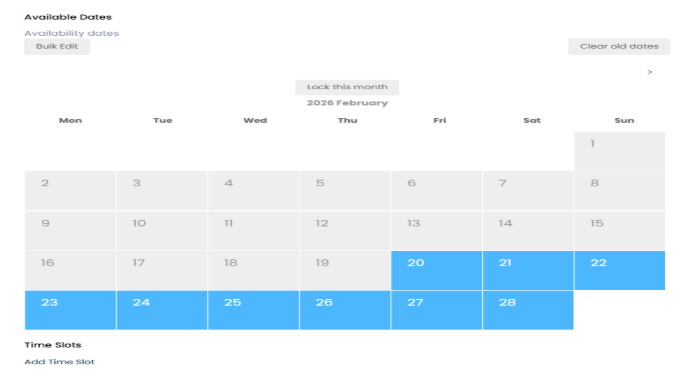
To manage room availability, open the Rooms calendar and click Unlock This Month to enable editing from the current date to the end of the month. Then double-click any date to set the room price and click Save to apply changes. You can select specific days to customize availability as needed. Locked months cannot be edited, ensuring no accidental changes are made. This process keeps your room listings accurate and up to date for customers
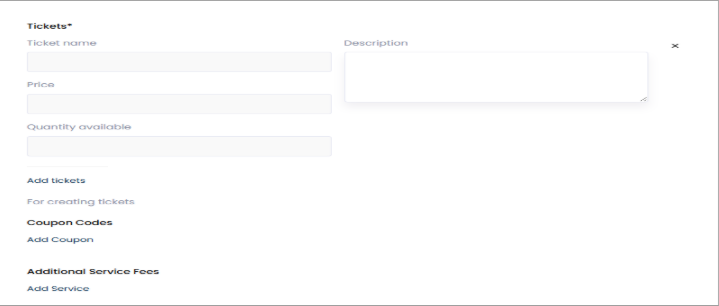
Use this section to create and manage event tickets. Enter the ticket name, description, price, and available quantity to define each ticket type, and click Add tickets to include more options needed. You can also include any additional service fees to provide complete event details for attendees.
Business Documents and Information
After completing the business details, you proceed to the Documents Section. This step is essential to verify the Authenticity Of The Business and ensure that all legal and financial requirements are met.
In this section, you must upload important documents such as UDYAM Aadhaar, Aadhaar Card, PAN Card, and a Cancelled Cheque. Depending on the type of business, you may also need to upload additional supporting documents to provide proof of ownership, registration, or compliance with local regulations.
Uploading these documents helps Mahhatithi verify the business quickly and accurately, ensuring that only genuine and legitimate businesses are listed on the platform. This step also builds trust with customers, who can be confident that the businesses on Mahhatithi are verified and credible.
Terms and Conditions
After uploading all the required documents, then you reach the final step of the registration process. Here, you carefully review all the information you have entered, ensuring that everything is accurate and complete.
You must also read and accept the Terms and Conditions, confirming that you understood the rules and policies of Mahhatithi. By submitting the listing, you declare that all the information provided is true and correct.
Once submitted, the application is saved as pending. The listing will be reviewed and verified by the Mahhatithi admin to ensure it meets the platform’s standards. After approval, the Business Listing Is Published On The Platform, making it visible to customers and fully active.
Register Under Tour Operator, Travel Agent and Destination Management Company
Add Listing
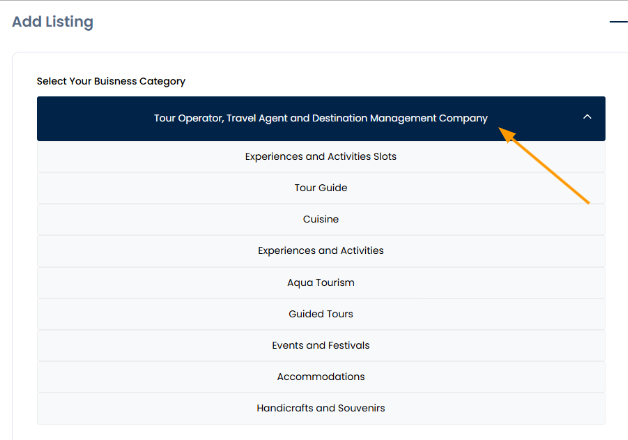
When you go to the “Add Listing” section, you can begin adding your business to Mahhatithi. This is the first step to creating an online presence for your business.
The first thing you need to do is select your Business Category as per the nature of your business.
Mahhatithi provides a clear List Of Business Types to choose from, like aqua tourism, travel services, cuisine, accommodation, and more. Picking the right category helps customers find the business easily.
For Tour Operator, Travel Agent and Destination Management Company you need to select the “Tour Operator, Travel Agent and Destination Management Company” option from the dropdown list.
Select the subcategory for your business
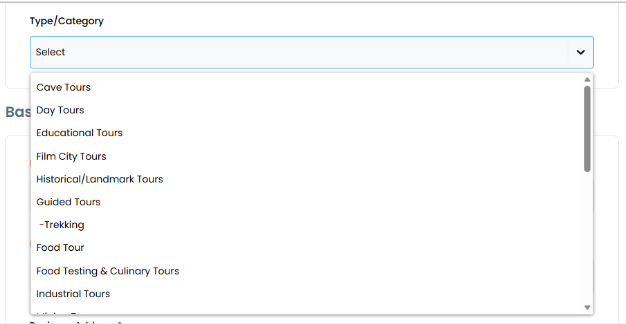
After selecting Tour Operator, Travel Agent and Destination Management Companyas the main Business Category, you need to choose the most appropriate Subcategory from the dropdown menu.
This step helps clearly define the type of business you offer, making it easier for customers to find exactly what they are looking for.
The available options include cave tours, day tours, educational tours, trekking, food tours , mining tours and so on.
Basic Informations
After selecting the main Business Category and the appropriate Subcategory, you need to fill the Basic Information About your Business. This step is important because it ensures the business is correctly listed and easy for customers to find.
In this section, you provide details such as the Business Name, Owner or Director Name, and the full Business Address, including village, city, taluka, district, state, country, and pin/zip code. If the working address is different from the main address, that can also be added. You also need to enter contact details like phone number and email, and may need to provide Aadhaar or ID information for verification.
Images and Media
Once you have filled in all the basic business details, the next step is to Upload Images in the Images and Media section. This section allows the business to Showcase Its Brand Visually, which makes the listing more attractive to potential customers.
You start by uploading a Display Image in a square format, which will be used as the main image for the business profile. Then, you can upload at least Three Landscape Images for the Header Slider, which appear prominently on the listing page. These images can include pictures of the shop, office, products, services, or any other visual representation of the business.
Uploading high-quality images is important because it improves the overall look of the listing, helps build trust with customers, and Makes The Business Stand Out From Others on the platform.
Details
After uploading images, you move to the Details section, where you provide more in-depth Information About your Business. This step helps customers understand what the business offers and what to expect.
You can list Available Facilities, such as free Wi-Fi, parking, air conditioning, or any other amenities that make the business convenient and attractive to customers.
Additionally, this section allows you to include Policies, such as rules for reservations, cancellations, or refunds, and FAQs to answer common customer questions.
Tours & Pricing
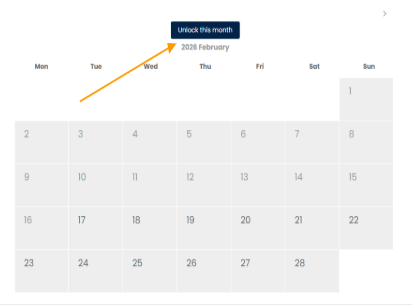
To manage room availability, open the Rooms calendar and click Unlock This Month to enable editing from the current date to the end of the month. Then double-click any date to set the room price and click Save to apply changes. You can select specific days to customize availability as needed. Locked months cannot be edited, ensuring no accidental changes are made. This process keeps your room listings accurate and up to date for customers
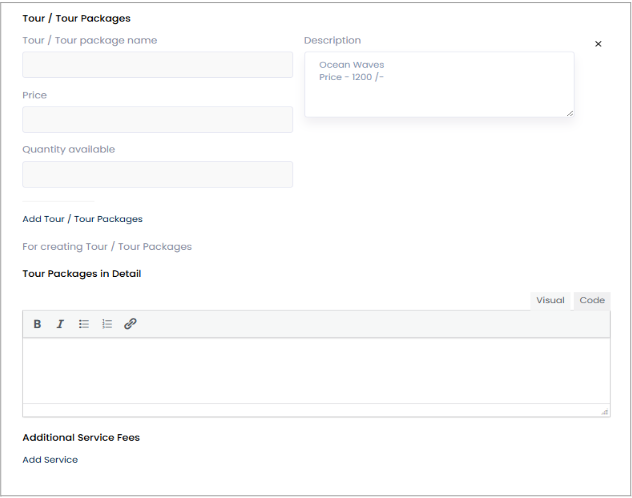
Refer to this section to add event details such as Tour / Tour packages , Price , Description and so on .Enter the required information in each field, then use Add tour / tour packages to include more tour types if needed. You can also add coupon codes and additional service fees to customize the booking options for your tour.
Business Documents and Information
After completing the business details, you proceed to the Documents Section. This step is essential to verify the Authenticity Of The Business and ensure that all legal and financial requirements are met.
In this section, you must upload important documents such as UDYAM Aadhaar, Aadhaar Card, PAN Card, and a Cancelled Cheque. Depending on the type of business, you may also need to upload additional supporting documents to provide proof of ownership, registration, or compliance with local regulations.
Uploading these documents helps Mahhatithi verify the business quickly and accurately, ensuring that only genuine and legitimate businesses are listed on the platform. This step also builds trust with customers, who can be confident that the businesses on Mahhatithi are verified and credible.
Terms and Conditions
After uploading all the required documents, then you reach the final step of the registration process. Here, you carefully review all the information you have entered, ensuring that everything is accurate and complete.
You must also read and accept the Terms and Conditions, confirming that you understood the rules and policies of Mahhatithi. By submitting the listing, you declare that all the information provided is true and correct.
Once submitted, the application is saved as pending. The listing will be reviewed and verified by the Mahhatithi admin to ensure it meets the platform’s standards. After approval, the Business Listing Is Published On The Platform, making it visible to customers and fully active.
Register Under Aqua Tourism
Add Listing
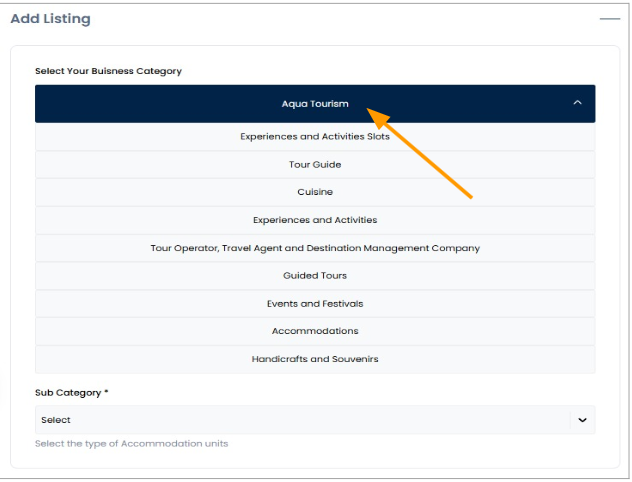
When you go to the “Add Listing” section, you can begin adding your business to Mahhatithi. This is the first step to creating an online presence for your business.
The first thing you need to do is select your Business Category as per the nature of your business.
Mahhatithi provides a clear List Of Business Types to choose from, like aqua tourism, travel services, cuisine, accommodation, and more. Picking the right category helps customers find the business easily.
For the Aqua Tourism, you need to select the “Aqua Tourism” option from the dropdown list.
Select the subcategory for your business
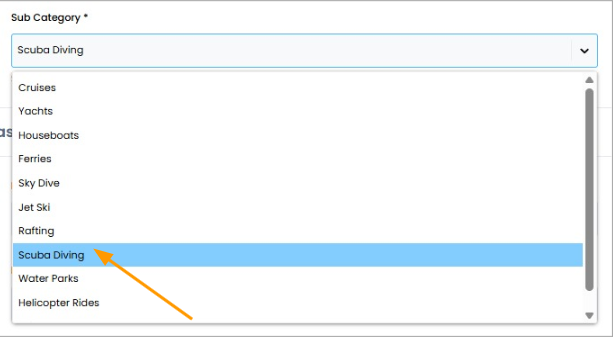
After selecting the main Business Category, the next step is to pick the most suitable Subcategory from the dropdown menu.
The subcategory helps to further Define Your Business, making it easier for customers to find exactly what they are looking for.
For example, if your main category is Aqua Tourism, the subcategory could be Scuba Diving or something else depending on your business type.
Selecting the correct subcategory ensures your business is listed accurately and improves its visibility on Mahhatithi.
Basic Informations
After selecting the main Business Category and the appropriate Subcategory, you need to fill the Basic Information About your Business. This step is important because it ensures the business is correctly listed and easy for customers to find.
In this section, you provide details such as the Business Name, Owner or Director Name, and the full Business Address, including village, city, taluka, district, state, country, and pin/zip code. If the working address is different from the main address, that can also be added. You also need to enter contact details like phone number and email, and may need to provide Aadhaar or ID information for verification.
Images and Media
Once you have filled in all the basic business details, the next step is to Upload Images in the Images and Media section. This section allows the business to Showcase Its Brand Visually, which makes the listing more attractive to potential customers.
You start by uploading a Display Image in a square format, which will be used as the main image for the business profile. Then, you can upload at least Three Landscape Images for the Header Slider, which appear prominently on the listing page. These images can include pictures of the shop, office, products, services, or any other visual representation of the business.
Uploading high-quality images is important because it improves the overall look of the listing, helps build trust with customers, and Makes The Business Stand Out From Others on the platform.
Details
After uploading images, you move to the Details section, where you provide more in-depth Information About your Business. This step helps customers understand what the business offers and what to expect.
You can list Available Facilities, such as free Wi-Fi, parking, air conditioning, or any other amenities that make the business convenient and attractive to customers.
Additionally, this section allows you to include Policies, such as rules for reservations, cancellations, or refunds, and FAQs to answer common customer questions.
Aqua Tourism & Pricing
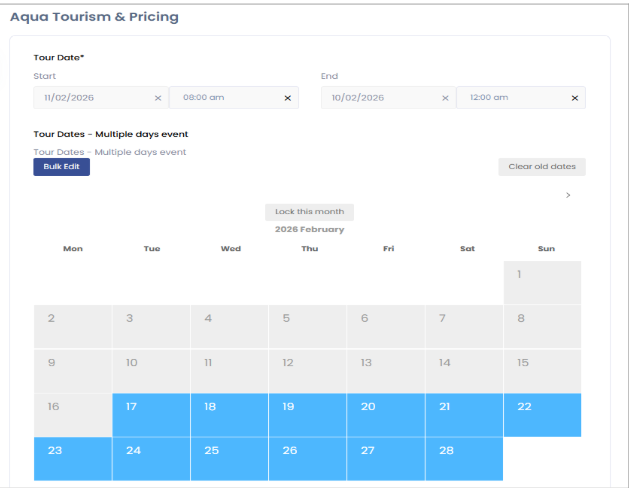
In the “Aqua Tourism & Pricing” section, you can manage tour schedules and availability by first selecting the Start Date & Time and End Date & Time to clearly define the tour duration; for events running multiple days, use the Multiple Days Event calendar option, and to update several dates at once you can use the Bulk Edit feature, while the Lock this Month option allows you to open bookings for that particular month.
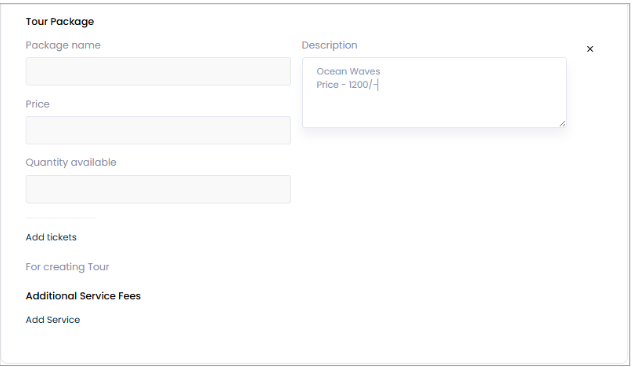
In the “Tour Package” section, you can create a complete tour offering by starting with the Package Name to clearly identify the tour, then adding a detailed Description explaining what is included in the experience, setting the Price per person, and defining the Quantity Available to control seat limits; you can manage bookings using the Add Tickets option, and under Additional Service Fees you can include extra paid services by entering the Service Name, Description, and Service Price for each add-on, as providing accurate details helps attract customers and increase bookings.
Business Documents and Information
After completing the business details, you proceed to the Documents Section. This step is essential to verify the Authenticity Of The Business and ensure that all legal and financial requirements are met.
In this section, you must upload important documents such as UDYAM Aadhaar, Aadhaar Card, PAN Card, and a Cancelled Cheque. Depending on the type of business, you may also need to upload additional supporting documents to provide proof of ownership, registration, or compliance with local regulations.
Uploading these documents helps Mahhatithi verify the business quickly and accurately, ensuring that only genuine and legitimate businesses are listed on the platform. This step also builds trust with customers, who can be confident that the businesses on Mahhatithi are verified and credible.
Terms and Conditions
After uploading all the required documents, then you reach the final step of the registration process. Here, you carefully review all the information you have entered, ensuring that everything is accurate and complete.
You must also read and accept the Terms and Conditions, confirming that you understood the rules and policies of Mahhatithi. By submitting the listing, you declare that all the information provided is true and correct.
Once submitted, the application is saved as pending. The listing will be reviewed and verified by the Mahhatithi admin to ensure it meets the platform’s standards. After approval, the Business Listing Is Published On The Platform, making it visible to customers and fully active.
Register Under Guided Tours
Add Listing
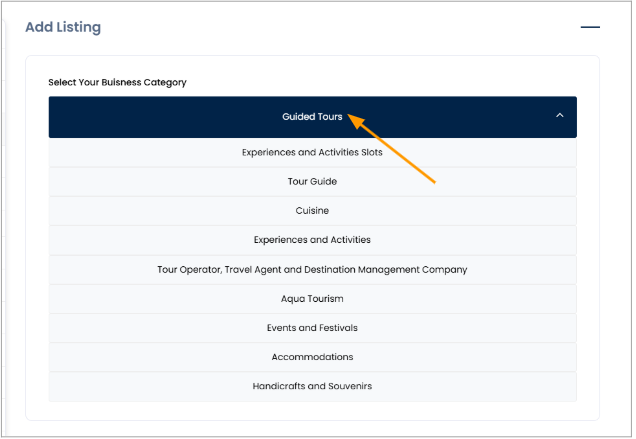
When you go to the “Add Listing” section, you can begin adding your business to Mahhatithi. This is the first step to creating an online presence for your business.
The first thing you need to do is select your Business Category as per the nature of your business.
Mahhatithi provides a clear List Of Business Types to choose from, like aqua tourism, travel services, cuisine, accommodation, and more. Picking the right category helps customers find the business easily.
For the Guided Tours , you need to select the “Guided Tours” option from the dropdown list.
Select the subcategory for your business
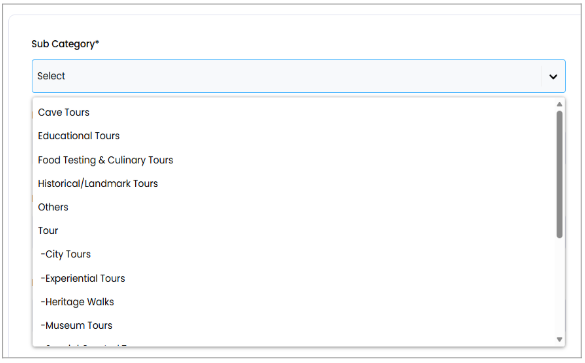
After selecting Guided Tours as the main Business Category, you need to choose the most appropriate Subcategory from the dropdown menu.
This step helps clearly define the type of bussiness you offer , making it easier for customers to find exactly what they are looking for.
Selecting the correct subcategory ensures your business is listed accurately and improves its visibility on Mahaatithi.
Basic Informations
After selecting the main Business Category and the appropriate Subcategory, you need to fill the Basic Information About your Business. This step is important because it ensures the business is correctly listed and easy for customers to find.
In this section, you provide details such as the Business Name, Owner or Director Name, and the full Business Address, including village, city, taluka, district, state, country, and pin/zip code. If the working address is different from the main address, that can also be added. You also need to enter contact details like phone number and email, and may need to provide Aadhaar or ID information for verification.
Images and Media
Once you have filled in all the basic business details, the next step is to Upload Images in the Images and Media section. This section allows the business to Showcase Its Brand Visually, which makes the listing more attractive to potential customers.
You start by uploading a Display Image in a square format, which will be used as the main image for the business profile. Then, you can upload at least Three Landscape Images for the Header Slider, which appear prominently on the listing page. These images can include pictures of the shop, office, products, services, or any other visual representation of the business.
Uploading high-quality images is important because it improves the overall look of the listing, helps build trust with customers, and Makes The Business Stand Out From Others on the platform.
Details
After uploading images, you move to the Details section, where you provide more in-depth Information About your Business. This step helps customers understand what the business offers and what to expect.
You can list Available Facilities, such as free Wi-Fi, parking, air conditioning, or any other amenities that make the business convenient and attractive to customers.
Additionally, this section allows you to include Policies, such as rules for reservations, cancellations, or refunds, and FAQs to answer common customer questions.
Events & Pricing
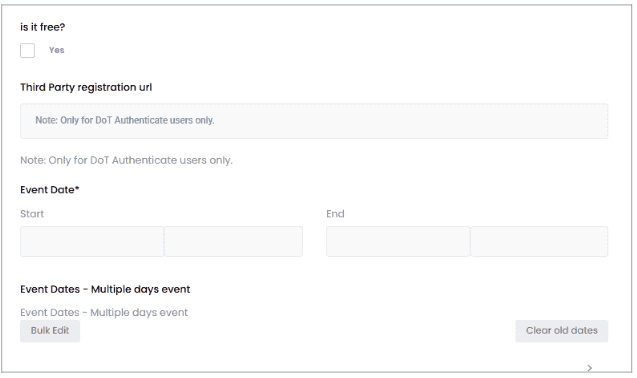
Use this section to configure details for your event or festival. Check Is it free? if the event does not require a ticket fee. If registrations are handled externally, add the third-party registration URL (available for authorized users only). Set the event start and end dates, and for multi-day events, use Bulk Edit to add multiple dates or Clear old dates to remove past ones. This ensures attendees see accurate schedule and registration information.
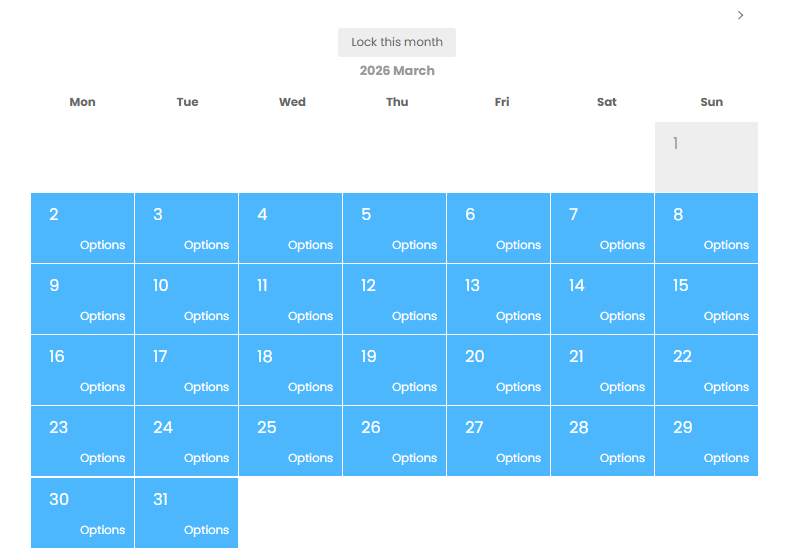
To manage room availability, open the Rooms calendar and click Unlock This Month to enable editing from the current date to the end of the month. Then double-click any date to set the room price and click Save to apply changes. You can select specific days to customize availability as needed. Locked months cannot be edited, ensuring no accidental changes are made. This process keeps your room listings accurate and up to date for customers
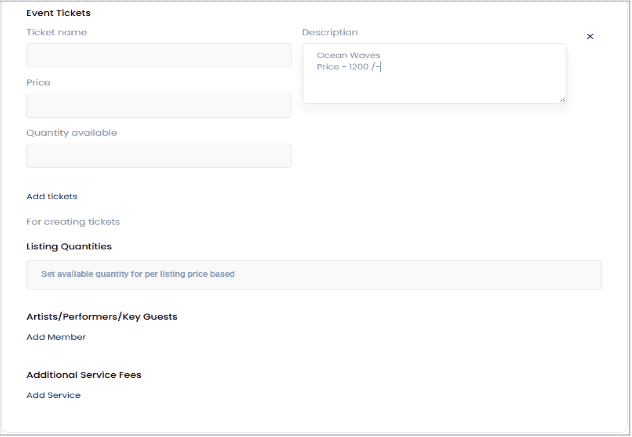
Use this section to create and manage event tickets. Enter the ticket name, description, price, and available quantity to define each ticket type, and click Add tickets to include more options if needed. You can also set listing-based quantities, add artists, performers, or key guests, and include any additional service fees to provide complete event details for attendees.
Business Documents and Information
After completing the business details, you proceed to the Documents Section. This step is essential to verify the Authenticity Of The Business and ensure that all legal and financial requirements are met.
In this section, you must upload important documents such as UDYAM Aadhaar, Aadhaar Card, PAN Card, and a Cancelled Cheque. Depending on the type of business, you may also need to upload additional supporting documents to provide proof of ownership, registration, or compliance with local regulations.
Uploading these documents helps Mahhatithi verify the business quickly and accurately, ensuring that only genuine and legitimate businesses are listed on the platform. This step also builds trust with customers, who can be confident that the businesses on Mahhatithi are verified and credible.
Terms and Conditions
After uploading all the required documents, then you reach the final step of the registration process. Here, you carefully review all the information you have entered, ensuring that everything is accurate and complete.
You must also read and accept the Terms and Conditions, confirming that you understood the rules and policies of Mahhatithi. By submitting the listing, you declare that all the information provided is true and correct.
Once submitted, the application is saved as pending. The listing will be reviewed and verified by the Mahhatithi admin to ensure it meets the platform’s standards. After approval, the Business Listing Is Published On The Platform, making it visible to customers and fully active.
Register Under Handicrafts and Souvenirs
Add Listing
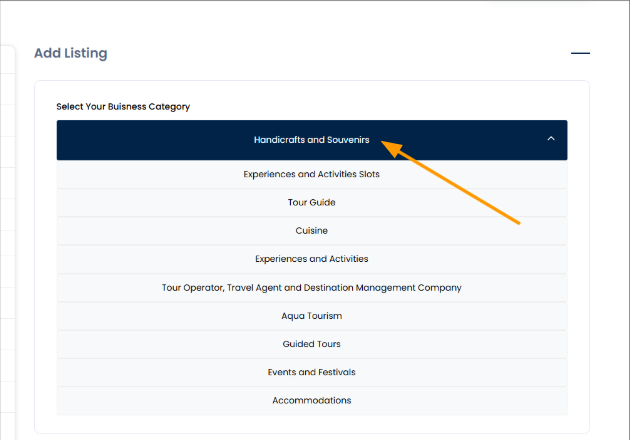
When you go to the “Add Listing” section, you can begin adding your business to Mahhatithi. This is the first step to creating an online presence for your business.
The first thing you need to do is select your Business Category as per the nature of your business.
Mahhatithi provides a clear List Of Business Types to choose from, like aqua tourism, travel services, cuisine, accommodation, and more. Picking the right category helps customers find the business easily.
For the Handicrafts and Souvenirs, you need to select the “Handicrafts and Souvenirs” option from the dropdown list.
Basic Informations
After selecting the main Business Category and the appropriate Subcategory, you need to fill the Basic Information About your Business. This step is important because it ensures the business is correctly listed and easy for customers to find.
In this section, you provide details such as the Business Name, Owner or Director Name, and the full Business Address, including village, city, taluka, district, state, country, and pin/zip code. If the working address is different from the main address, that can also be added. You also need to enter contact details like phone number and email, and may need to provide Aadhaar or ID information for verification.
Details
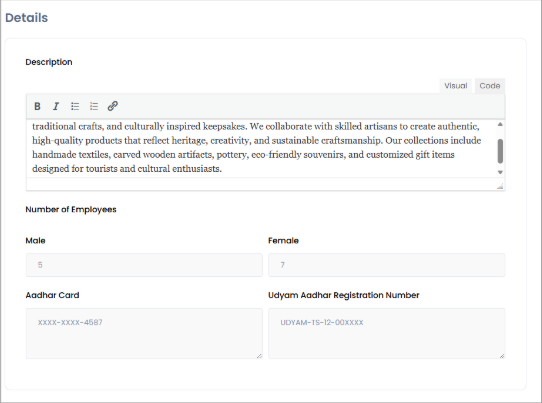
In this section, You are required to provide complete business details for verification and official record purposes. The information must be entered accurately as it reflects the legal and operational status of the business.
You must provide a clear and detailed description of the business. This should include the nature of the business, products or services offered, target customers, and any unique selling points.
The registered Aadhar number and udyam adhar of the business owner or authorized representative must be provided for identity verification purposes.
Also you can mention the number of male and female employees involved in his business
Licences/Permissions/Certificate
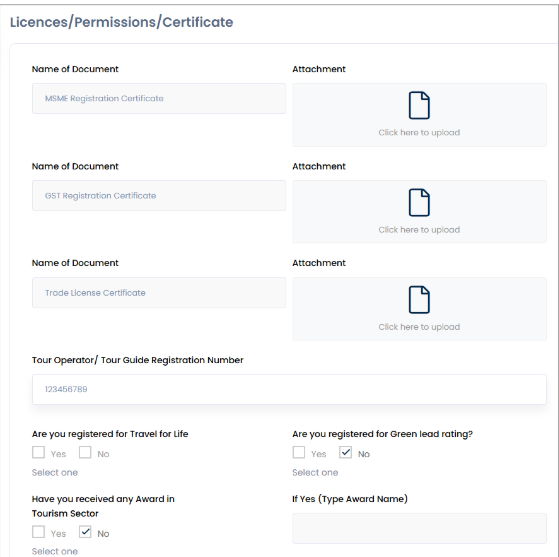
In the Licences, Registrations & Certifications section, you are required to provide the names of all relevant licences, permissions, or certificates and upload the corresponding documents using the attachment option.
This may include trade licences, GST certificates, MSME/Udyam registration, or any other applicable approvals. If operating as a tour operator or tour guide, the official registration number must be entered
You must also indicate whether you are registered under the Travel for Life initiative, registered for a Green Lead Rating, and whether you have received any awards in the tourism sector by selecting the appropriate Yes or No options. All information submitted should be accurate and up to date for verification purposes.
Images and Media
Once you have filled in all the basic business details, the next step is to Upload Images in the Images and Media section. This section allows the business to Showcase Its Brand Visually, which makes the listing more attractive to potential customers.
You start by uploading a Display Image in a square format, which will be used as the main image for the business profile. Then, you can upload at least Three Landscape Images for the Header Slider, which appear prominently on the listing page. These images can include pictures of the shop, office, products, services, or any other visual representation of the business.
Uploading high-quality images is important because it improves the overall look of the listing, helps build trust with customers, and Makes The Business Stand Out From Others on the platform.
Social And Declaration
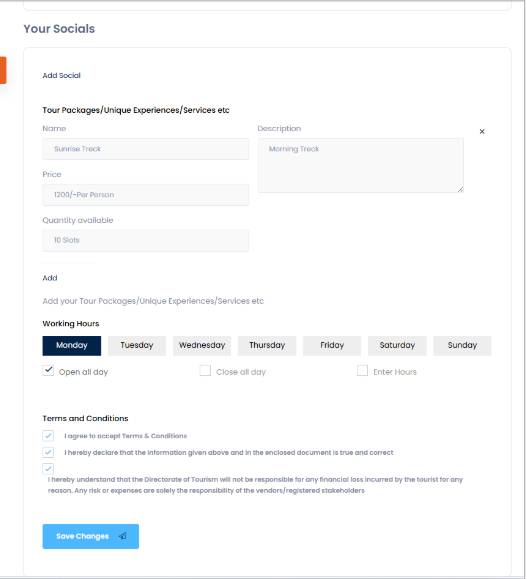
In the Your Socials section, you can add your official social media profiles to enhance visibility and engagement.
Under Tour Packages / Unique Experiences / Services, you can create and manage offerings by entering the name, price per person, available quantity (number of slots), and a brief description, with the option to add multiple packages as needed.
In the Terms and Conditions section, you must confirm your acceptance of the platform’s terms, declare that all provided information and submitted documents are true and correct, and acknowledge that the Directorate of Tourism will not be responsible for any financialloss incurred by tourists, as all risks and expenses are solely the responsibility of the registered vendors or stakeholders.
Once all details are reviewed, you must click Save Changes to submit the information.
Register Under Experiences and Activities Slot
Add Listing
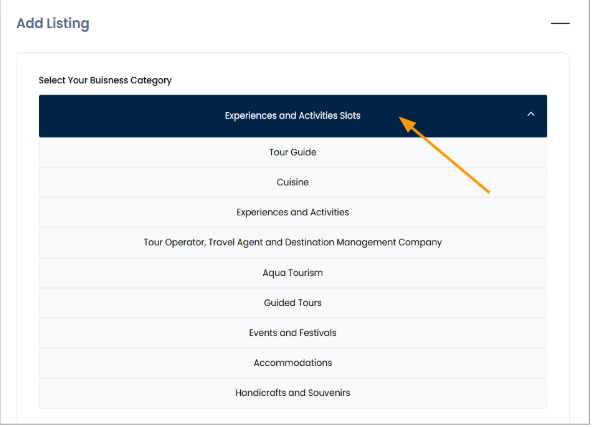
When you go to the “Add Listing” section, you can begin adding your business to Mahhatithi. This is the first step to creating an online presence for your business.
The first thing you need to do is select your Business Category as per the nature of your business.
Mahhatithi provides a clear List Of Business Types to choose from, like aqua tourism, travel services, cuisine, accommodation, and more. Picking the right category helps customers find the business easily.
For the Experiences and Activities Slot you need to select the “Experinces And Activites Slot” option from the dropdown list.
Select the subcategory for your business
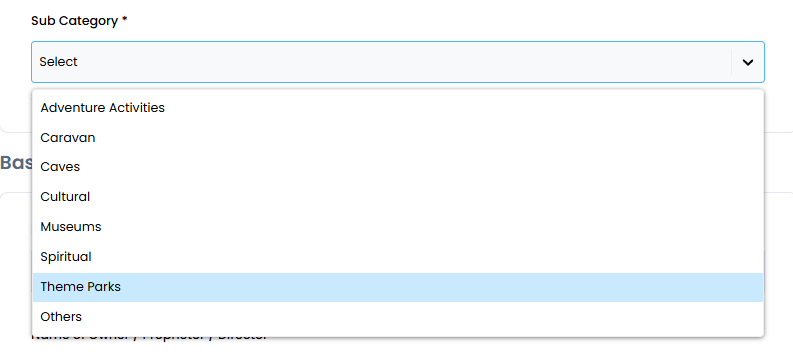
After selecting Experiences and Activities slot as the main Business Category, you need to choose the most appropriate Subcategory from the dropdown menu.
This step helps clearly define the type of business you offer, making it easier for customers to find exactly what they are looking for.
The available options include Adventure Activities , Caravan, Caves, Caravan, Cultural, Museums , Spiritual , Theme Parks and Others.
Selecting the correct subcategory ensures your business is listed accurately and improves its visibility on Mahhatithi.
Basic Informations
After selecting the main Business Category and the appropriate Subcategory, you need to fill the Basic Information About your Business. This step is important because it ensures the business is correctly listed and easy for customers to find.
In this section, you provide details such as the Business Name, Owner or Director Name, and the full Business Address, including village, city, taluka, district, state, country, and pin/zip code. If the working address is different from the main address, that can also be added. You also need to enter contact details like phone number and email, and may need to provide Aadhaar or ID information for verification.
Images and Media
Once you have filled in all the basic business details, the next step is to Upload Images in the Images and Media section. This section allows the business to Showcase Its Brand Visually, which makes the listing more attractive to potential customers.
You start by uploading a Display Image in a square format, which will be used as the main image for the business profile. Then, you can upload at least Three Landscape Images for the Header Slider, which appear prominently on the listing page. These images can include pictures of the shop, office, products, services, or any other visual representation of the business.
Uploading high-quality images is important because it improves the overall look of the listing, helps build trust with customers, and Makes The Business Stand Out From Others on the platform.
Details
After uploading images, you move to the Details section, where you can provide more in-depth Information About your Business. This step helps customers understand what the business offers and what to expect.
In this section, you can enter the Guest Capacity to show how many people the business can accommodate. You also write a Business Description, giving an overview of the services, ambiance, or Unique Features of the business.
You can list Available Facilities, such as free Wi-Fi, parking, air conditioning, or any other amenities that make the business convenient and attractive to customers.
Additionally, this section allows the you to include Policies, such as rules for reservations, cancellations, or refunds, and FAQs to answer common customer question
Events & Pricing
To manage room availability, open the Rooms calendar and click Unlock This Month to enable editing from the current date to the end of the month. Then double-click any date to set the room price and click Save to apply changes. You can select specific days to customize availability as needed. Locked months cannot be edited, ensuring no accidental changes are made. This process keeps your room listings accurate and up to date for customers
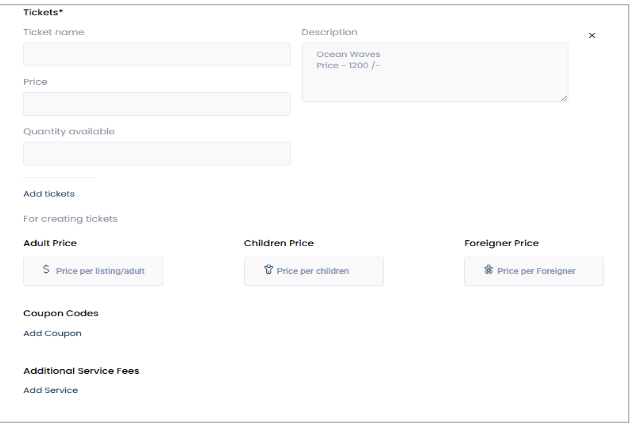
Refer to this section to add event details such as tickets , price , description , coupon codes and so on.. Enter the required information in each field, then use Add tickets to include more ticket types if needed. You can also add coupon codes and additional service fees to customize the booking options for your event.
Business Documents and Information
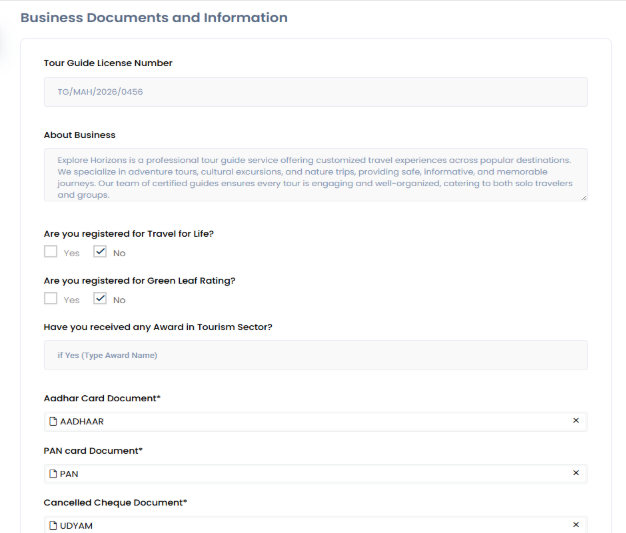
After completing the business details, You proceed to the Documents Section. This step is essential to verify the Authenticity Of The Business and ensure that all legal and financial requirements are met.
In this section, you must upload important documents such as UDYAM Aadhaar, Aadhaar Card, PAN Card, and a Cancelled Cheque. Depending on the type of business, you may also need to upload additional supporting documents to provide proof of ownership, registration, or compliance with local regulations.
Uploading these documents helps Mahhatithi verify the business quickly and accurately, ensuring that only genuine and legitimate businesses are listed on the platform. This step also builds trust with customers, who can be confident that the businesses on Mahhatithi are verified and credible.
Terms and Conditions
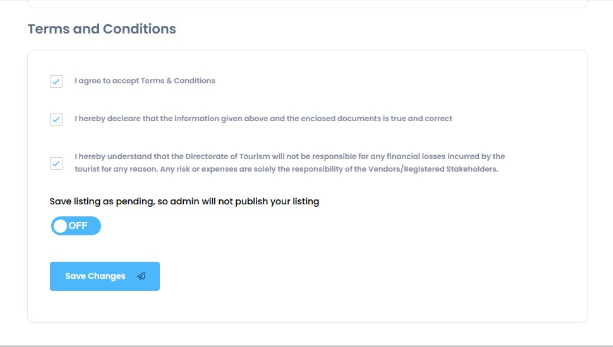
After uploading all the required documents, you reach the final step of the registration process. Here, you need to carefully review all the information you have entered, ensuring that everything is accurate and complete.
You must also read and accept the Terms and Conditions, confirming that you have understood the rules and policies of Mahhatithi. By submitting the listing, you declare that all the information provided is true and correct.
Once submitted, the application is saved as pending. The listing will be reviewed and verified by the Mahhatithi admin to ensure it meets the platform’s standards. After approval, the Business Listing Is Published On The Platform, making it visible to customers and fully active.
Register Under Cuisine
Add Listing
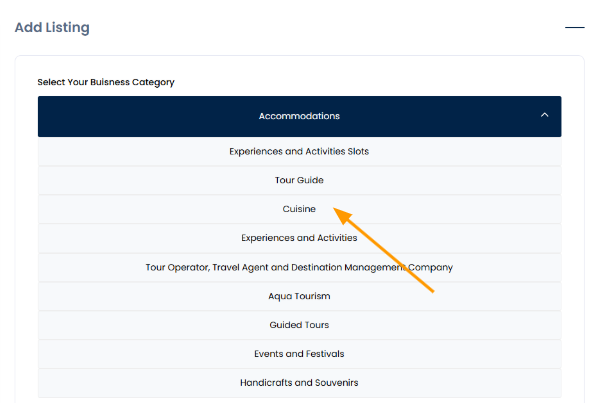
When you go to the “Add Listing” section, you start the process of adding your business to Mahhatithi. This is the first step to create an online presence for your business.
The first thing you need to do is select your Business Category as per the nature of your business.
The available options include Restaurant, Food Safaris, Authentic Food/Cuisines, Cafeterias, and Others.
For Cuisine you need to select the “Cuisine” option from the dropdown list.
Select the subcategory for your business
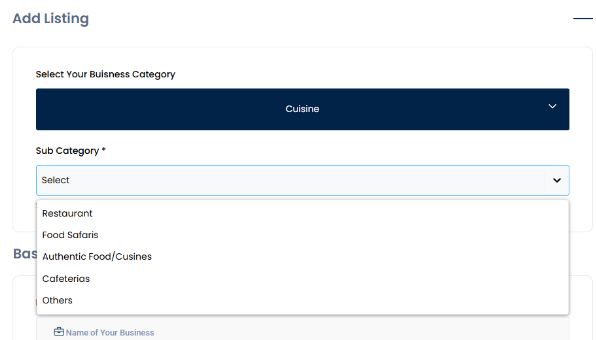
After selecting Cuisine slot as the main Business Category, you need to choose the most appropriate Subcategory from the dropdown menu.
This step helps clearly define the type of business you offer, making it easier for customers to find exactly what they are looking for.
The available options include Restaurant , Food Safaris , Auithentic Food / Cuisines , Cafeteries and Others.
Selecting the correct subcategory ensures your business is listed accurately and improves its visibility on Mahhatithi.
Basic Informations
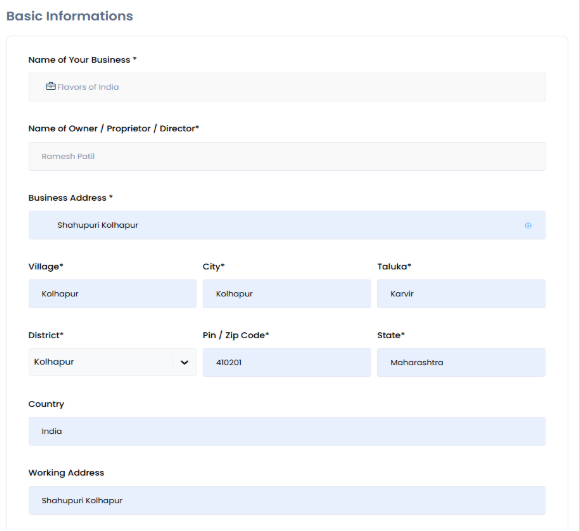
After selecting the main Business Category and the appropriate Subcategory, you need to fill the Basic Information About your Business. This step is important because it ensures the business is correctly listed and easy for customers to find.
In this section, you provide details such as the Business Name, Owner or Director Name, and the full Business Address, including village, city, taluka, district, state, country, and pin/zip code. If the working address is different from the main address, that can also be added. You also need to enter contact details like phone number and email, and may need to provide Aadhaar or ID information for verification.
Images and Media
Once you have filled in all the basic business details, the next step is to Upload Images in the Images and Media section. This section allows the business to Showcase Its Brand Visually, which makes the listing more attractive to potential customers.
You start by uploading a Display Image in a square format, which will be used as the main image for the business profile. Then, you can upload at least Three Landscape Images for the Header Slider, which appear prominently on the listing page. These images can include pictures of the shop, office, products, services, or any other visual representation of the business.
Uploading high-quality images is important because it improves the overall look of the listing, helps build trust with customers, and Makes The Business Stand Out From Others on the platform.
Details
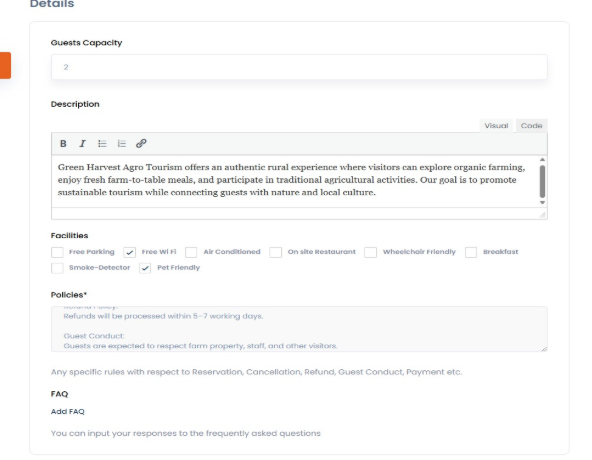
After uploading images, you move to the Details section, where you can provide more in-depth Information About your Business. This step helps customers understand what the business offers and what to expect.
In this section, you can enter the Guest Capacity to show how many people the business can accommodate. You also write a Business Description, giving an overview of the services, ambiance, or Unique Features of the business.
You can list Available Facilities, such as free Wi-Fi, parking, air conditioning, or any other amenities that make the business convenient and attractive to customers.
Additionally, this section allows the you to include Policies, such as rules for reservations, cancellations, or refunds, and FAQs to answer common customer question
Cuisines & Pricing
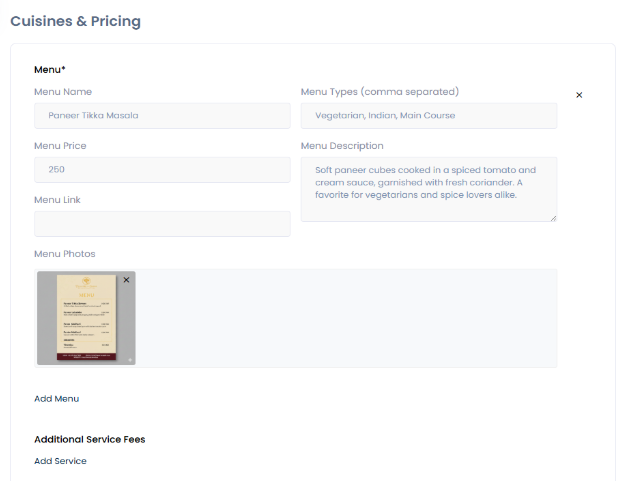
After uploading images and media for the business, you move to the Cuisines & Pricing section, where you can add your menu items. This section allows the business to showcase the food or services you offer, along with pricing and descriptions, helping customers understand what to expect.
For each menu item, you need to provide the Menu Name, Price, Menu Link (if available), Menu Types (such as Vegetarian, Main Course, Desserts, etc.), and a Menu Description that highlights the dish. For example, a dish like Paneer Tikka Masala can have a description such as “Soft paneer cubes cooked in a spiced tomato and cream sauce, garnished with fresh coriander. A favorite for vegetarians and spice lovers alike.
You can also upload menu photos which enhances the visual appeal of the listing and helps customers make informed choices. By carefully filling in this section, businesses can effectively present their offerings, highlight specialty dishes, and attract more customers through a detailed and visually appealing menu.
Set Rooms & Availability
To manage room availability, open the Rooms calendar and click Unlock This Month to enable editing from the current date to the end of the month. Then double-click any date to set the room price and click Save to apply changes. You can select specific days to customize availability as needed. Locked months cannot be edited, ensuring no accidental changes are made. This process keeps your room listings accurate and up to date for customers
Use this section to set up your cuisine details. Click Add Menu to include dishes or meal options, and use Add Service to add any additional service fees if applicable. Under Available Dates, select or bulk edit dates to define when this cuisine offering will be available for booking.
Business Documents and Information
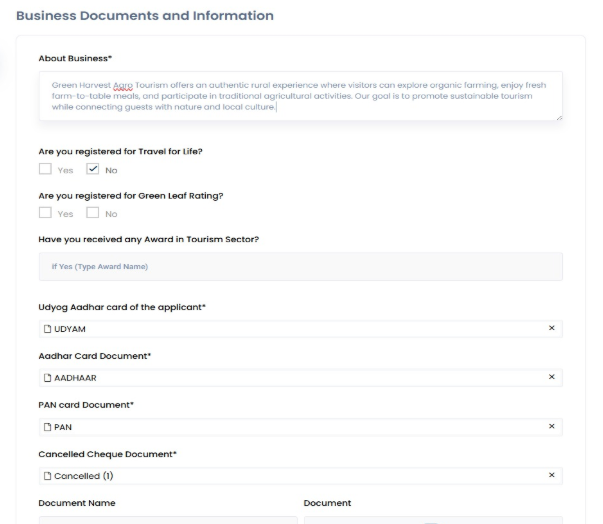
After completing the business details, You proceed to the Documents Section. This step is essential to verify the Authenticity Of The Business and ensure that all legal and financial requirements are met.
In this section, you must upload important documents such as UDYAM Aadhaar, Aadhaar Card, PAN Card, and a Cancelled Cheque. Depending on the type of business, you may also need to upload additional supporting documents to provide proof of ownership, registration, or compliance with local regulations.
Uploading these documents helps Mahhatithi verify the business quickly and accurately, ensuring that only genuine and legitimate businesses are listed on the platform. This step also builds trust with customers, who can be confident that the businesses on Mahhatithi are verified and credible.
Terms and Conditions
After uploading all the required documents, you reach the final step of the registration process. Here, you need to carefully review all the information you have entered, ensuring that everything is accurate and complete.
You must also read and accept the Terms and Conditions, confirming that you have understood the rules and policies of Mahhatithi. By submitting the listing, you declare that all the information provided is true and correct.
Once submitted, the application is saved as pending. The listing will be reviewed and verified by the Mahhatithi admin to ensure it meets the platform’s standards. After approval, the Business Listing Is Published On The Platform, making it visible to customers and fully active.
Register Under Events And Festivals
Add Listing
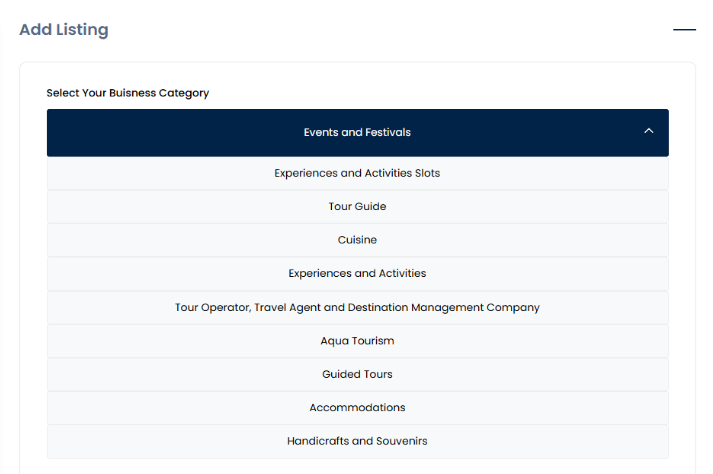
When you go to the “Add Listing” section, you can begin adding your business to Mahhatithi. This is the first step to creating an online presence for your business.
The first thing you need to do is select your Business Category as per the nature of your business.
Mahhatithi provides a clear List Of Business Types to choose from, like aqua tourism, travel services, cuisine, accommodation, and more. Picking the right category helps customers find the business easily.
For Events and Festivals You need to Select the “ Events and Festivals” option from the dropdown list.
Select the subcategory for your business
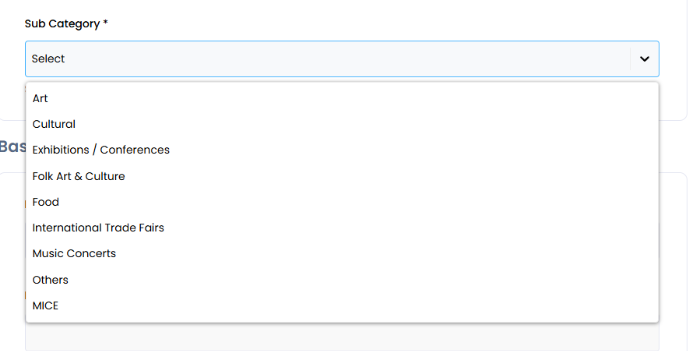
After selecting Experiences and Activities slot as the main Business Category, you need to choose the most appropriate Subcategory from the dropdown menu.
This step helps clearly define the type of business you offer, making it easier for customers to find exactly what they are looking for.
The available options include Art , Cultural, Music Concerts, and so on.
Selecting the correct subcategory ensures your business is listed accurately and improves its visibility on Mahhatithi.
Basic Informations
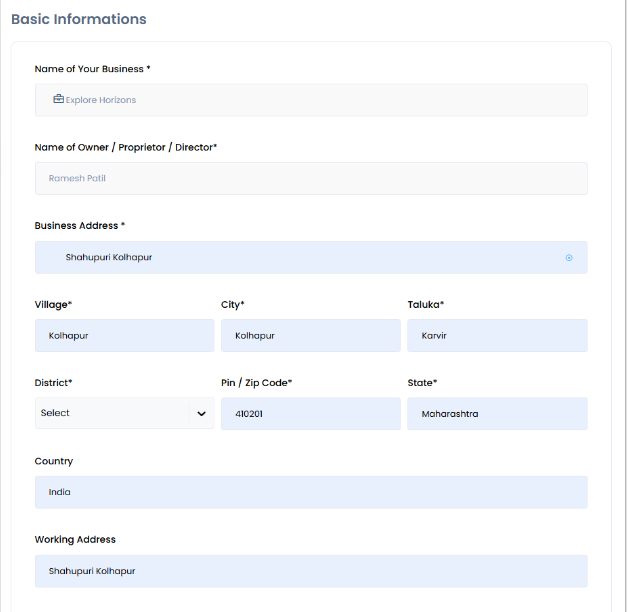
After selecting the main Business Category and the appropriate Subcategory, you need to fill the Basic Information About your Business. This step is important because it ensures the business is correctly listed and easy for customers to find.
In this section, you provide details such as the Business Name, Owner or Director Name, and the full Business Address, including village, city, taluka, district, state, country, and pin/zip code. If the working address is different from the main address, that can also be added. You also need to enter contact details like phone number and email, and may need to provide Aadhaar or ID information for verification.
Images and Media
Once you have filled in all the basic business details, the next step is to Upload Images in the Images and Media section. This section allows the business to Showcase Its Brand Visually, which makes the listing more attractive to potential customers.
You start by uploading a Display Image in a square format, which will be used as the main image for the business profile. Then, you can upload at least Three Landscape Images for the Header Slider, which appear prominently on the listing page. These images can include pictures of the shop, office, products, services, or any other visual representation of the business.
Uploading high-quality images is important because it improves the overall look of the listing, helps build trust with customers, and Makes The Business Stand Out From Others on the platform.
Details
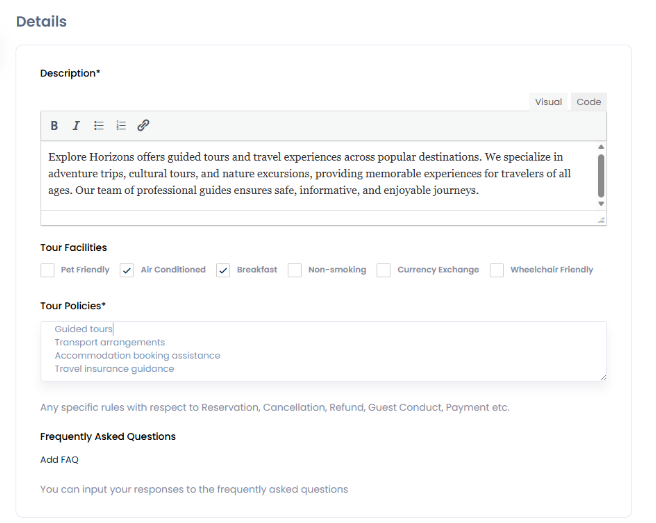
After uploading images, you move to the Details section, where you can provide more in-depth Information About your Business. This step helps customers understand what the business offers and what to expect.
You can list Available Facilities, such as free Wi-Fi, parking, air conditioning, or any other amenities that make the business convenient and attractive to customers.
Additionally, this section allows the you to include Policies, such as rules for reservations, cancellations, or refunds, and FAQs to answer common customer question
Events & Pricing
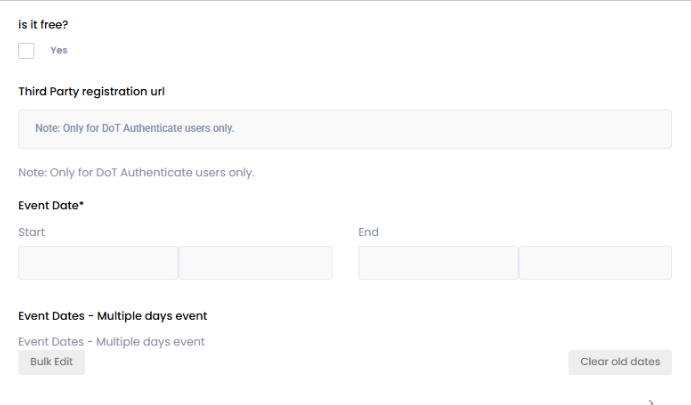
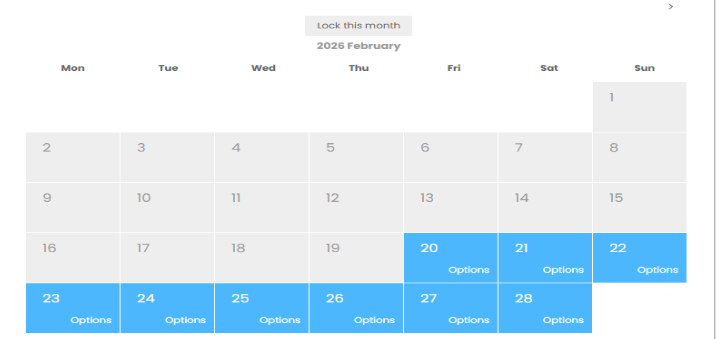
Use this section to configure details for your event or festival. Check Is it free? if the event does not require a ticket fee. If registrations are handled externally, add the third-party registration URL (available for authorized users only). Set the event start and end dates, and for multi-day events, use Bulk Edit to add multiple dates or Clear old dates to remove past ones. This ensures attendees see accurate schedule and registration information.
To manage room availability, open the Rooms calendar and click Unlock This Month to enable editing from the current date to the end of the month. Then double-click any date to set the room price and click Save to apply changes. You can select specific days to customize availability as needed. Locked months cannot be edited, ensuring no accidental changes are made. This process keeps your room listings accurate and up to date for customers
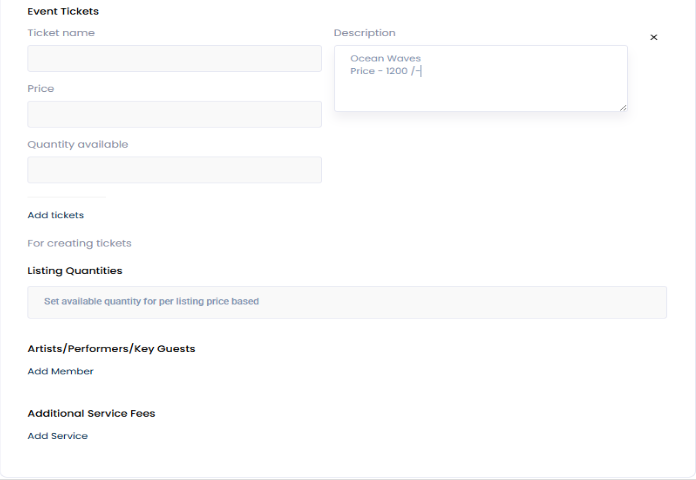
Use this section to create and manage event tickets. Enter the ticket name, description, price, and available quantity to define each ticket type, and click Add tickets to include more options if needed. You can also set listing-based quantities, add artists, performers, or key guests, and include any additional service fees to provide complete event details for attendees.
Business Documents and Information
After completing the business details, You proceed to the Documents Section. This step is essential to verify the Authenticity Of The Business and ensure that all legal and financial requirements are met.
In this section, you must upload important documents such as UDYAM Aadhaar, Aadhaar Card, PAN Card, and a Cancelled Cheque. Depending on the type of business, you may also need to upload additional supporting documents to provide proof of ownership, registration, or compliance with local regulations.
Uploading these documents helps Mahhatithi verify the business quickly and accurately, ensuring that only genuine and legitimate businesses are listed on the platform. This step also builds trust with customers, who can be confident that the businesses on Mahhatithi are verified and credible.
Terms and Conditions
After uploading all the required documents, you reach the final step of the registration process. Here, you need to carefully review all the information you have entered, ensuring that everything is accurate and complete.
You must also read and accept the Terms and Conditions, confirming that you have understood the rules and policies of Mahhatithi. By submitting the listing, you declare that all the information provided is true and correct.
Once submitted, the application is saved as pending. The listing will be reviewed and verified by the Mahhatithi admin to ensure it meets the platform’s standards. After approval, the Business Listing Is Published On The Platform, making it visible to customers and fully active.